
Reporting and Exporting Incidents
Incidents can be reported both through the mobile app and the Admin Panel. Let’s take a look at how to report and export incidents through the Admin Panel.
Click through the steps to learn how to report an incident using the Admin Panel.

Step 1
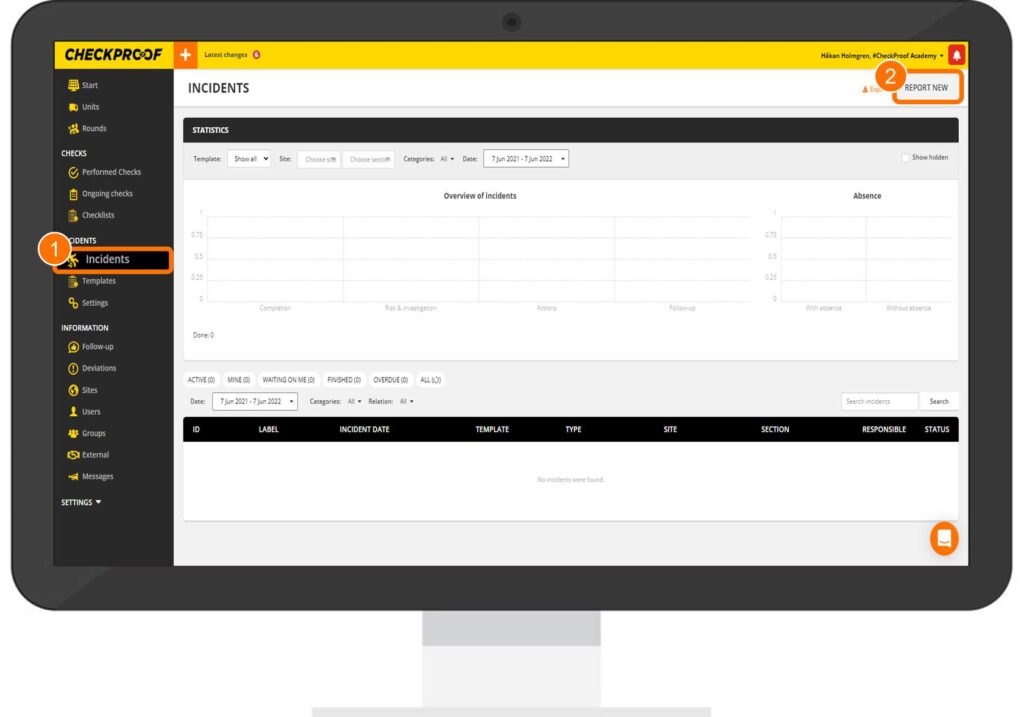
To report a new incident, you first need to select “Incidents” in the left-side panel, then click the “Report New” button.
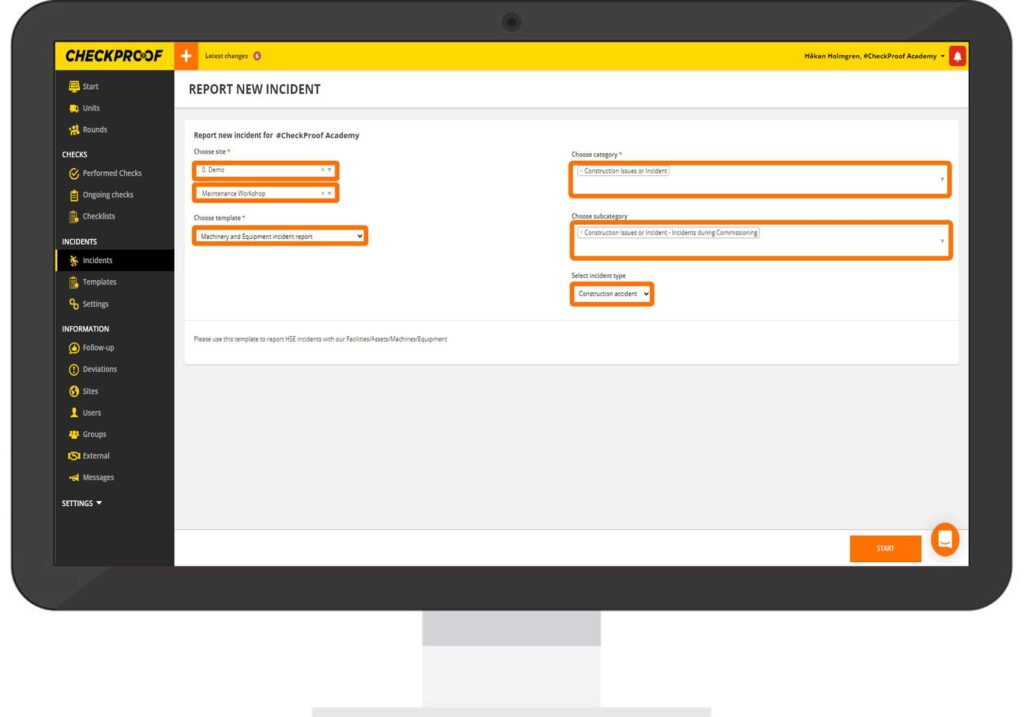
You now need to fill out some information regarding the incident. The fields described below are marked with an asterisk, indicating they are mandatory.
- *Choose Site: Here you should select a site from the drop-down list where the incident occurred. Once you have selected a site, you will have the possibility to select a specific section if there are any related to this site.
- *Choose Template: Select an existing template from the drop-down list. You will learn how to create a template from the Admin Panel in the next lesson.
- *Choose Category: Select an incident category from the drop-down list.
- Choose Subcategory: You can select a subcategory from the drop-down list.
- Select Incident Type: You can select the type of incident from the drop-down list that has been predefined by an admin in the Admin Panel.
Step 3
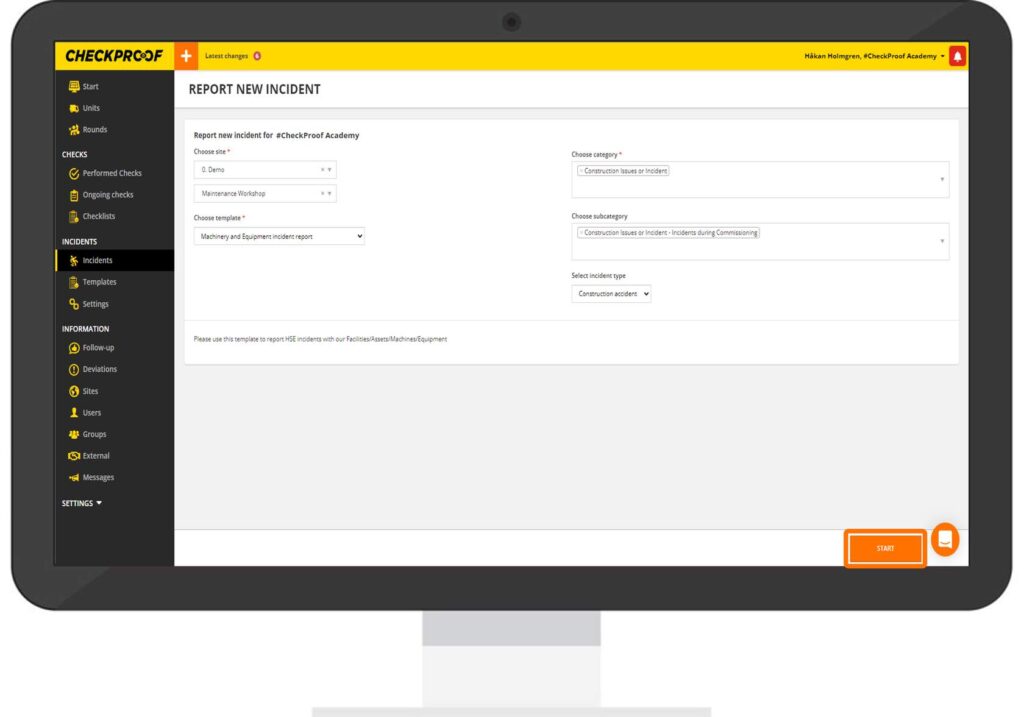
After completing the form with any relevant information related to the incident, click the “Save” button.
Let’s learn how to export incidents!

Step 1
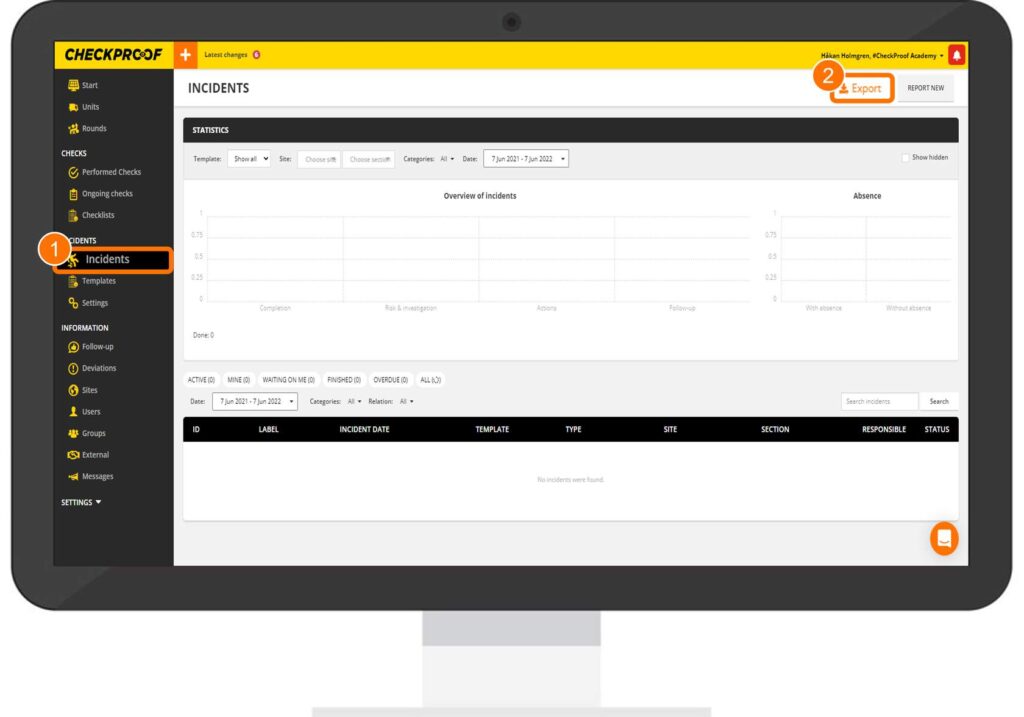
Click on “Incidents” in the left-side panel. Then, click the “Export” button to the upper right of the screen.
Step 2
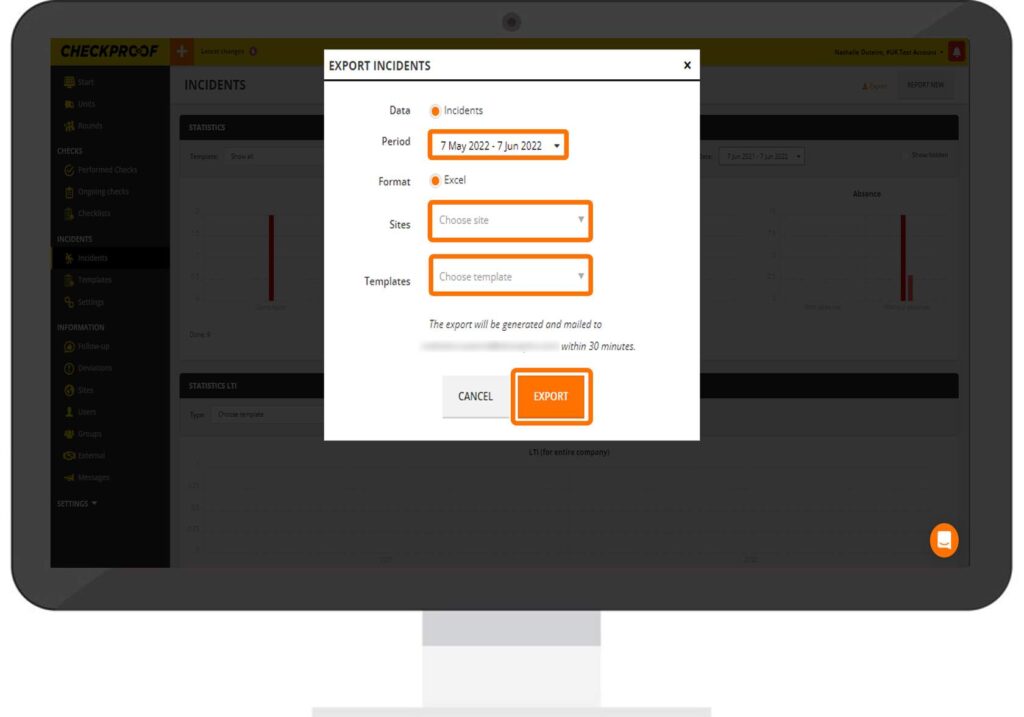
Now you need to complete the form that appears on your screen.
Now you need to complete the form that appears on your screen.
- Data: Here only “Incidents” data will be visible as it’s been preselected. It cannot be changed.
- Period: Click the arrow icon and then select two dates from the calendar. Any incidents reported during this period of time will be exported.
- Format: The “Excel” format will be preselected and cannot be changed.
- Sites: You can filter the incidents that will be exported by selecting the sites you want to include.
- Templates: You can also filter by template. Select any template(s) you want to include in the exported file.
When you are finished, click the “Export” button to generate the file. The export will be generated and emailed to you within 30 minutes.
Step 3
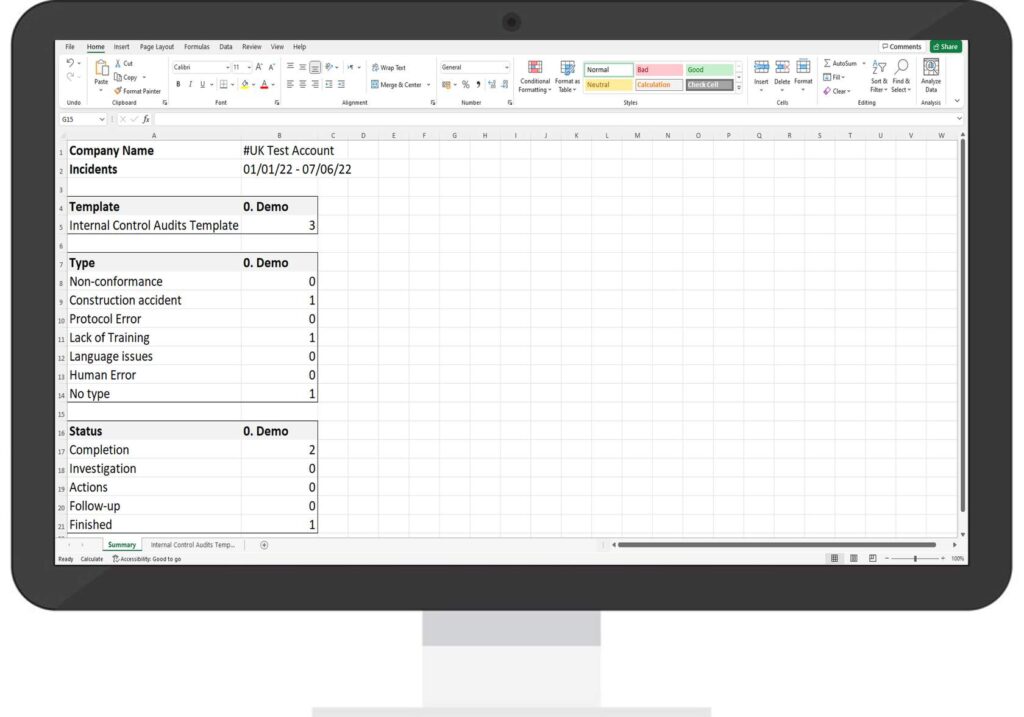
Navigate to your email and click on the attachment to download the exported file to your device.
Great! Now you know how to report and export incidents through the Admin Panel.

