Manage Unit Templates
The unit template sets the basic information of a unit. You may find it useful to edit the template to reflect the most valuable information.
1
Find the template editor
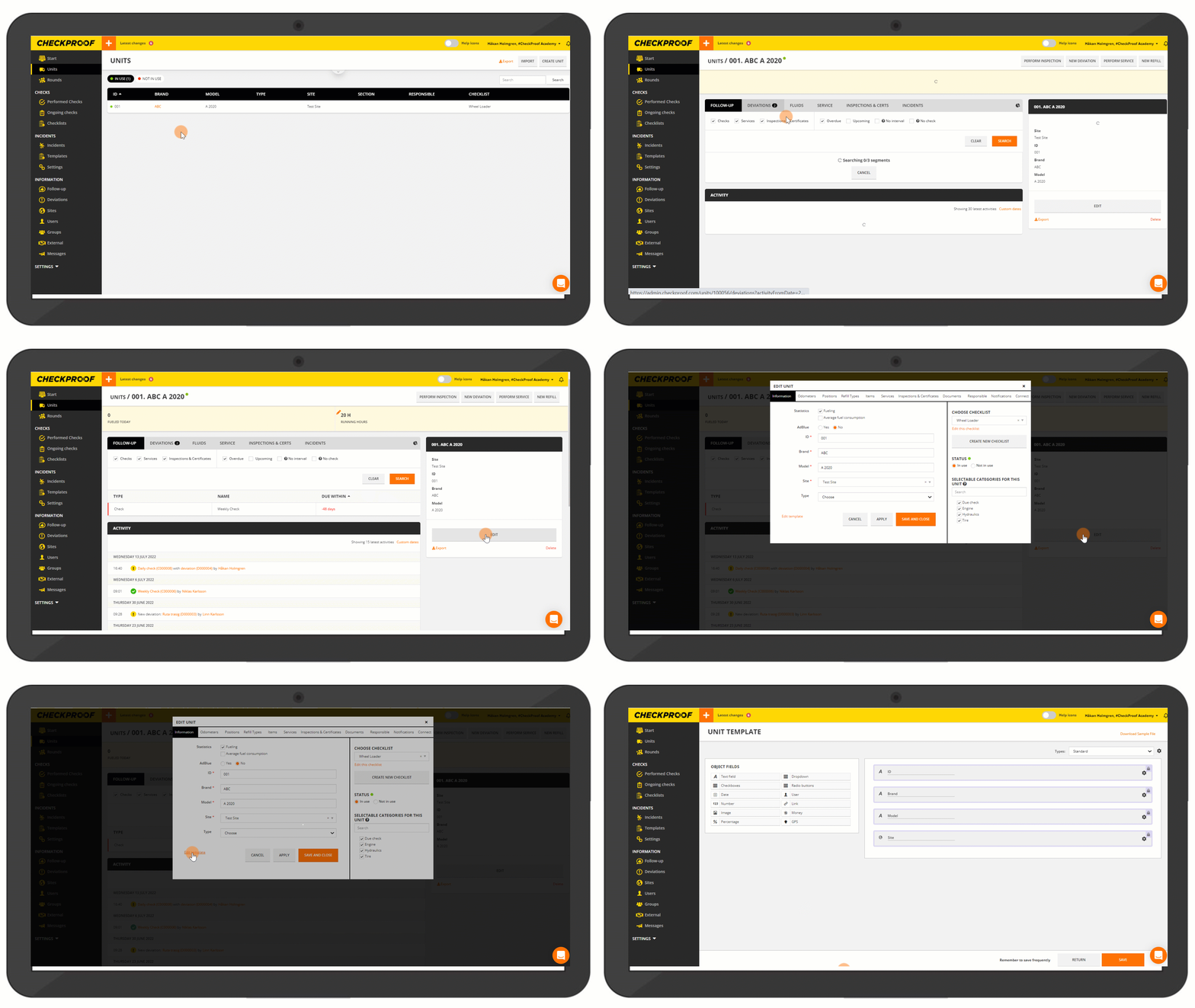
Whenever you need to modify the template of a unit:
- Open the “Units” menu.
- Select the “Unit” you need to edit.
- Click on “Edit”.
- Click on “Edit” Template”.
2
Edit template
Just like a checklist, you can edit the template by dragging and dropping the fields that you want to add to the unit template.
If you choose the “Dropdown” or “Radio Button” option, you are able to add a “Type Filter”, which will appear in the unit table.
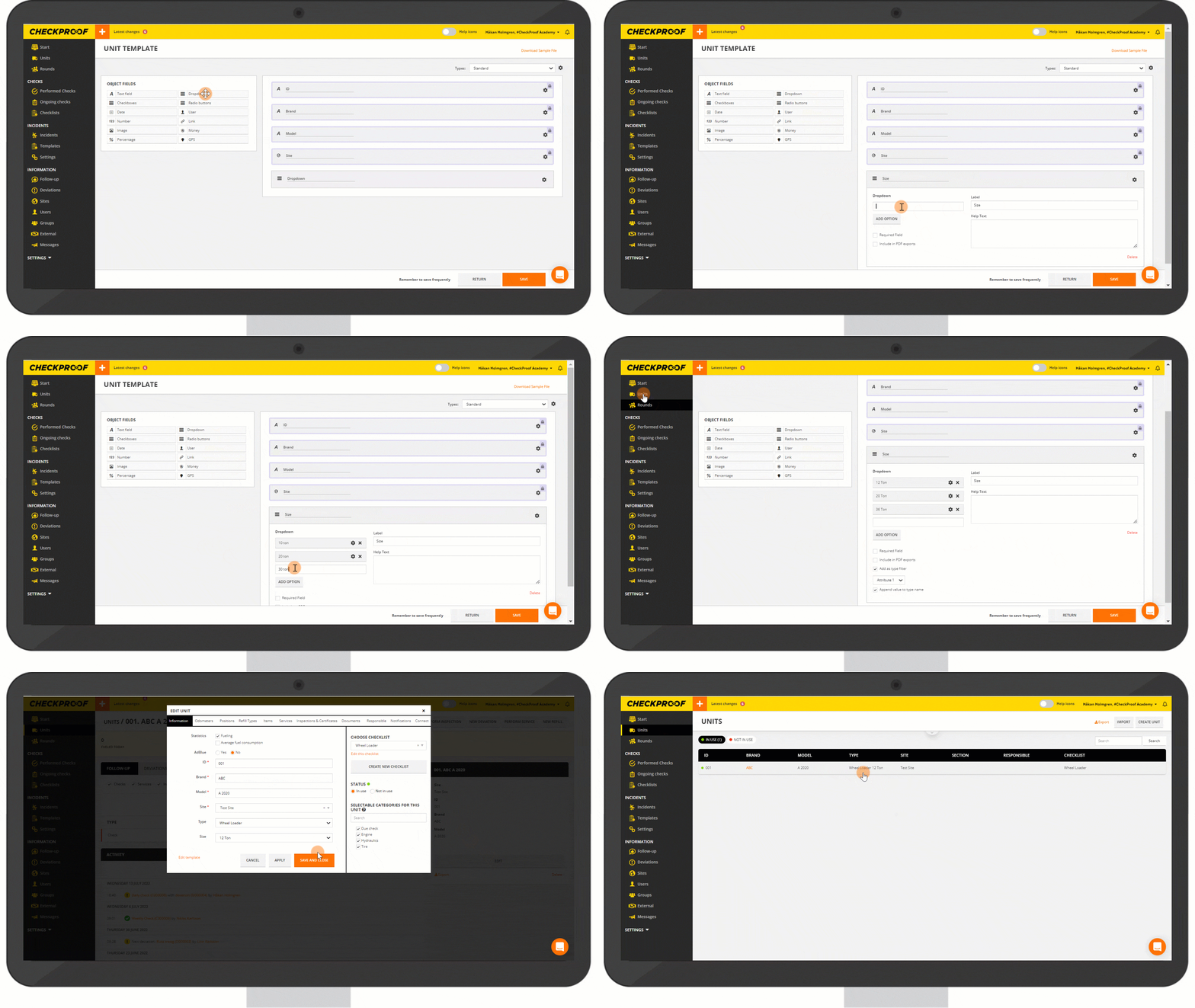
- Drag and drop the “Dropdown” option into the template.
- Rename the label for this new filter type, i.e, (Size).
- Enter your preferred options (i,e,10 ton, 20 ton, 30 ton).
- Click on “Add” for each option.
- Select the “Add as a type filter” box.
- Click on “Save”.
Now, let’s go back to the Unit table to see how this information will be displayed.
- Select the Unit and click on “Edit”.
- Select the template that you’ve created or edited (i.e, Wheel Loader).
- The new filter type “Size” will now be displayedin the table.
- Once you select the Unit size, you will find this information in the “Unit” table.
3
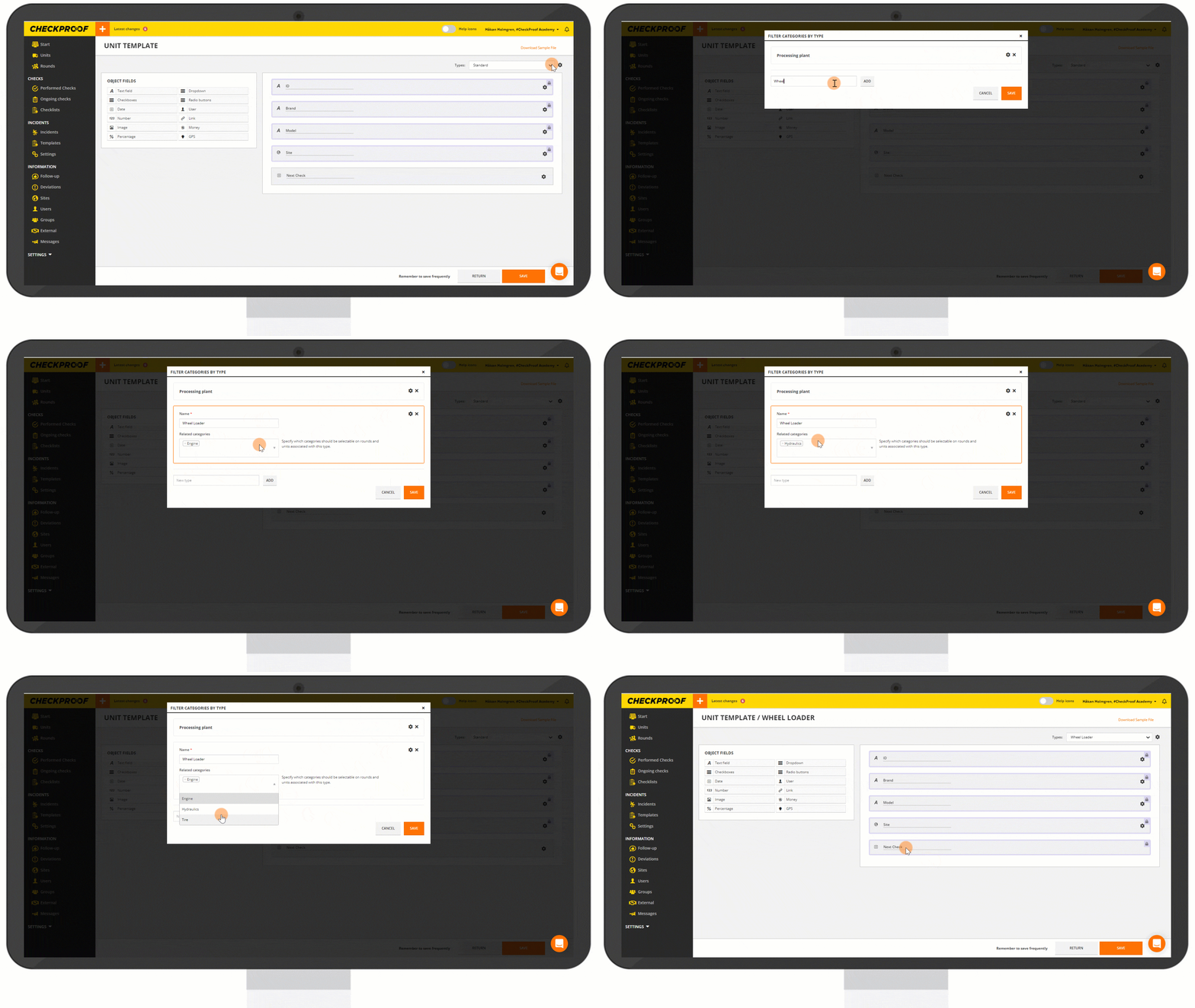
Unless you’ve created new templates, you will find that the type of template is set to “Standard” by default.
Let’s see how to create a new Template type.
Create a new template type
- Click on the cogwheel next to the “Types” field.
- Enter a name for the template you are creating.
- Click on “Add” and then “Save”.
The new template type will be available in the filter menu.
You can easily change the type of template you want to use from here.