Following Up and Updating a Deviation
How to update and rectify an existing deviation.
There are two ways to update a deviation:
- You can view and update a deviation by clicking the “Deviations” button on the homepage.
- You can view and update a deviation you have been assigned from “My Tasks”.
1
Updating a Deviation from the Homepage
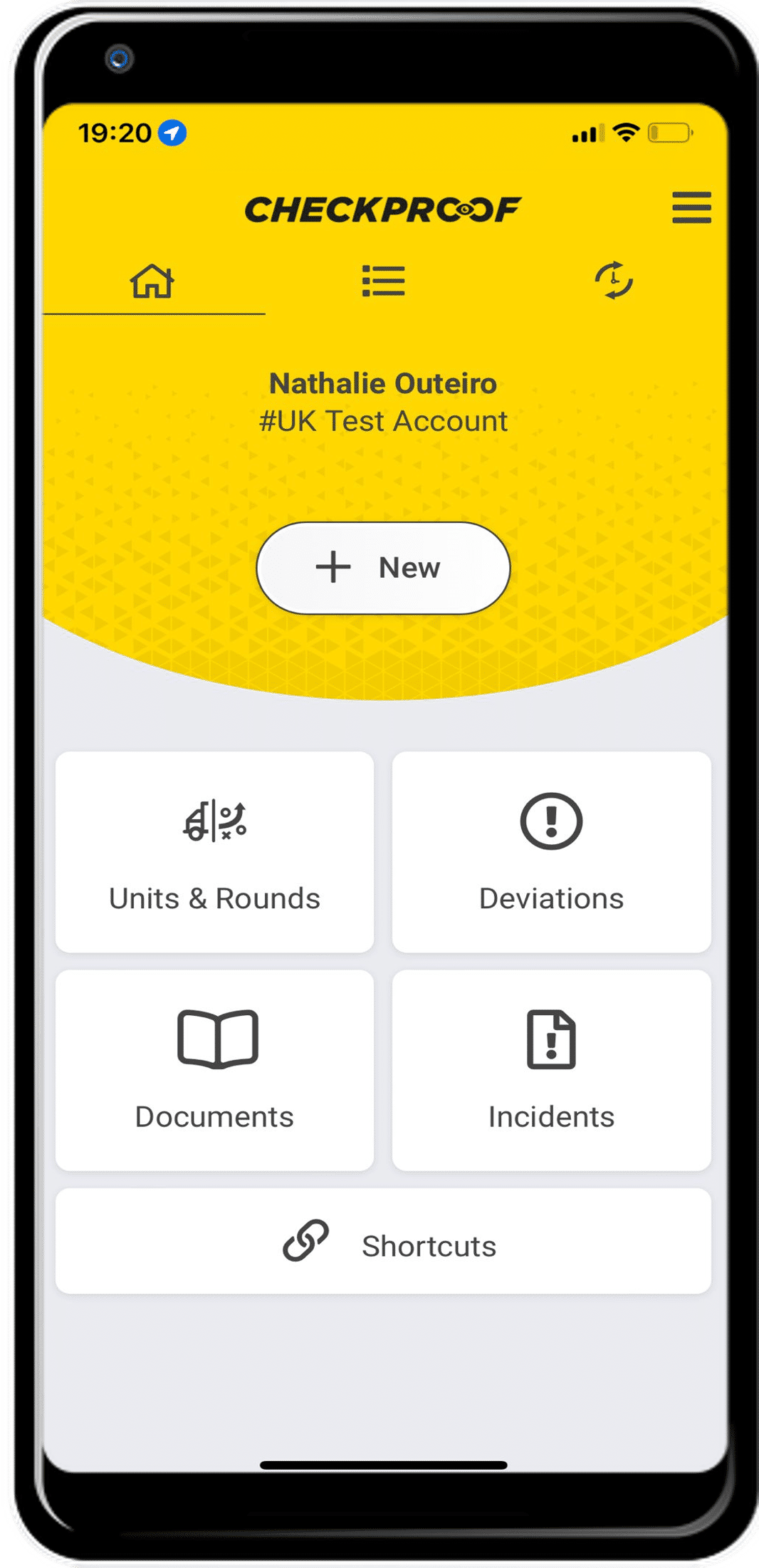
Click the “Deviations” button.
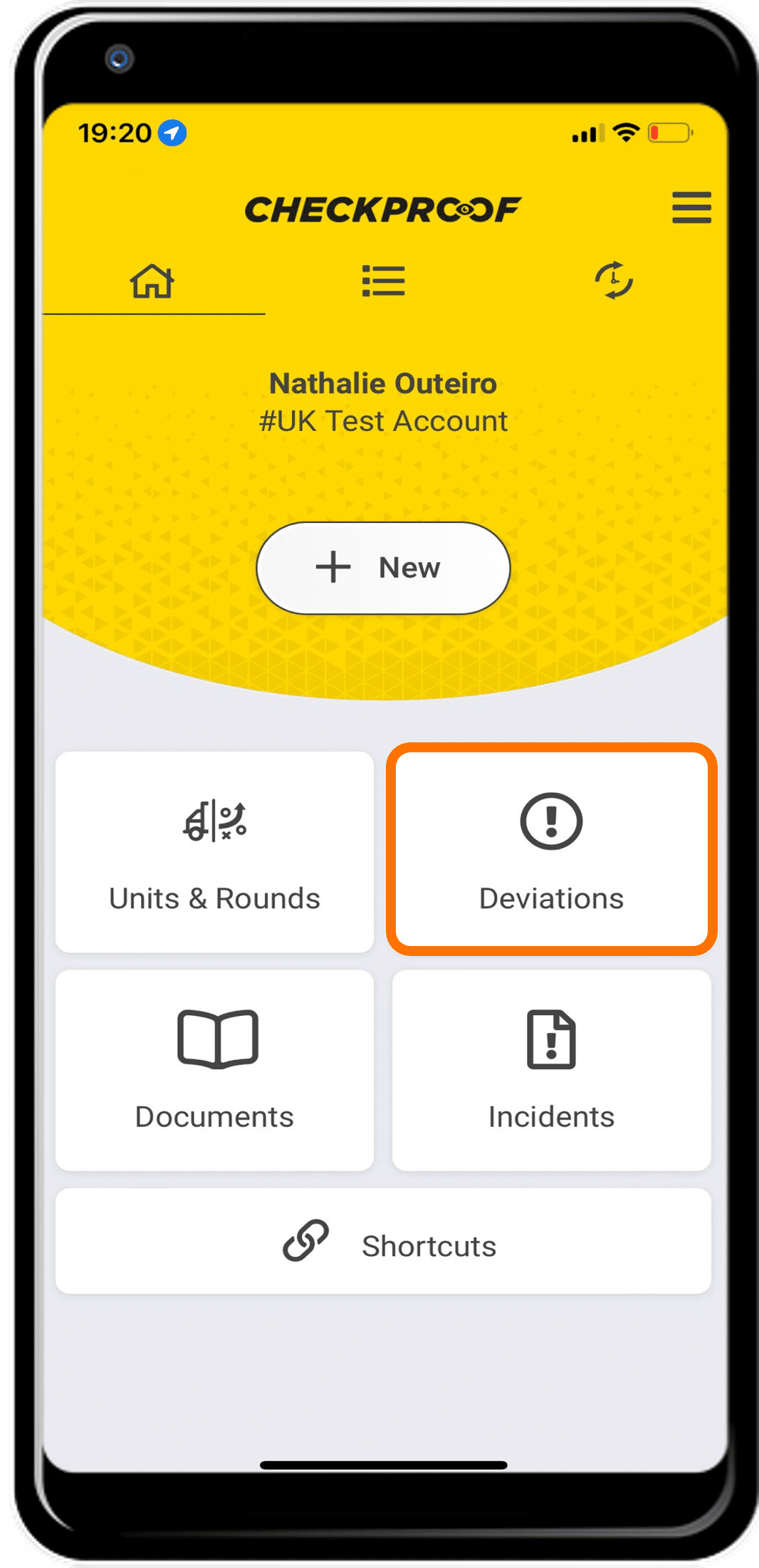
First, you should click the “Deviations” button from the homepage.
Choose your deviation.
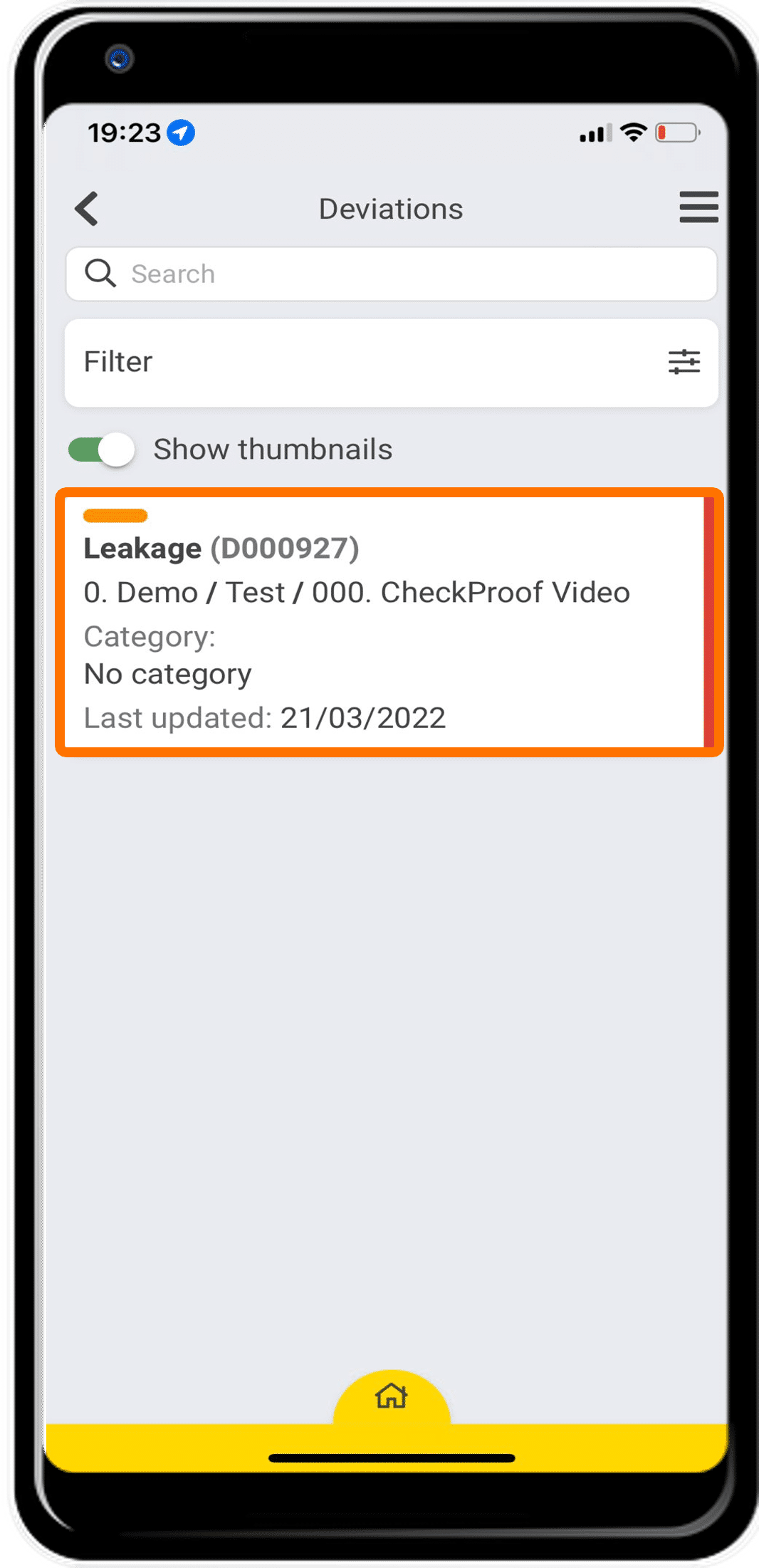
Now you should see a list of active deviations. Click the deviation that you want to update.
Edit the deviation.
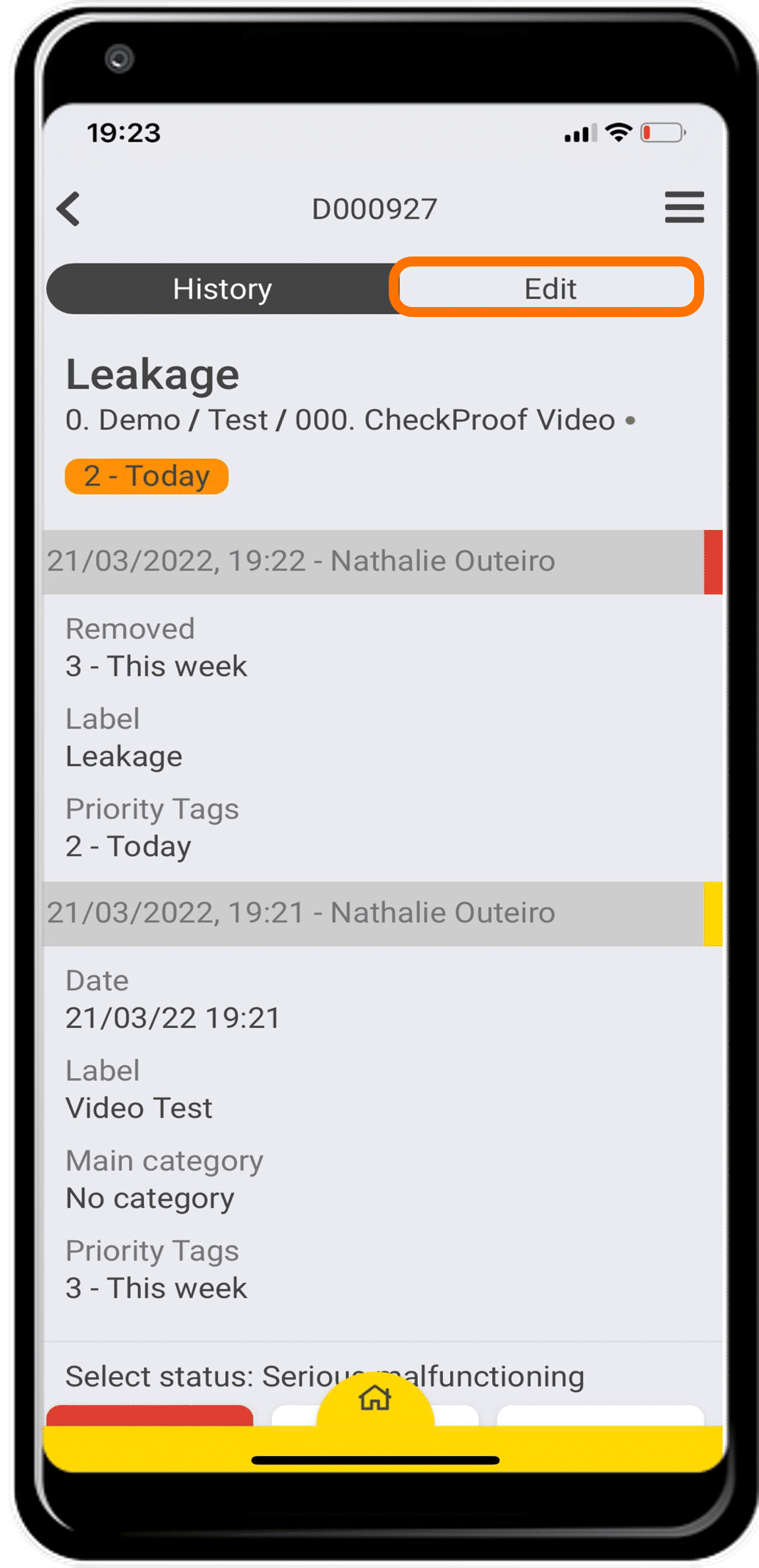
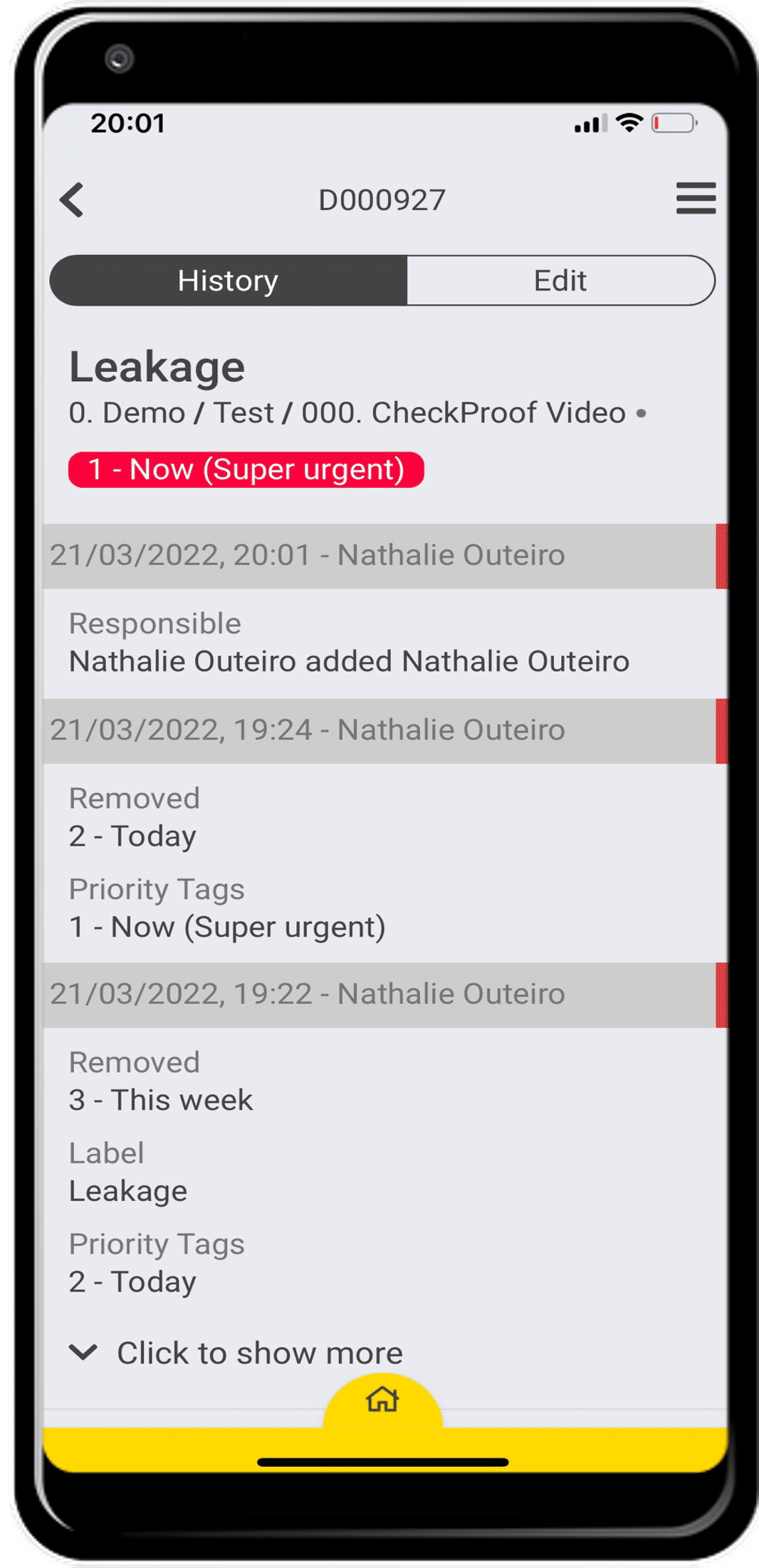
Here you will see all of the information related to your chosen deviation. Click the “Edit” button at the top of the screen to update this deviation.
Update the information.
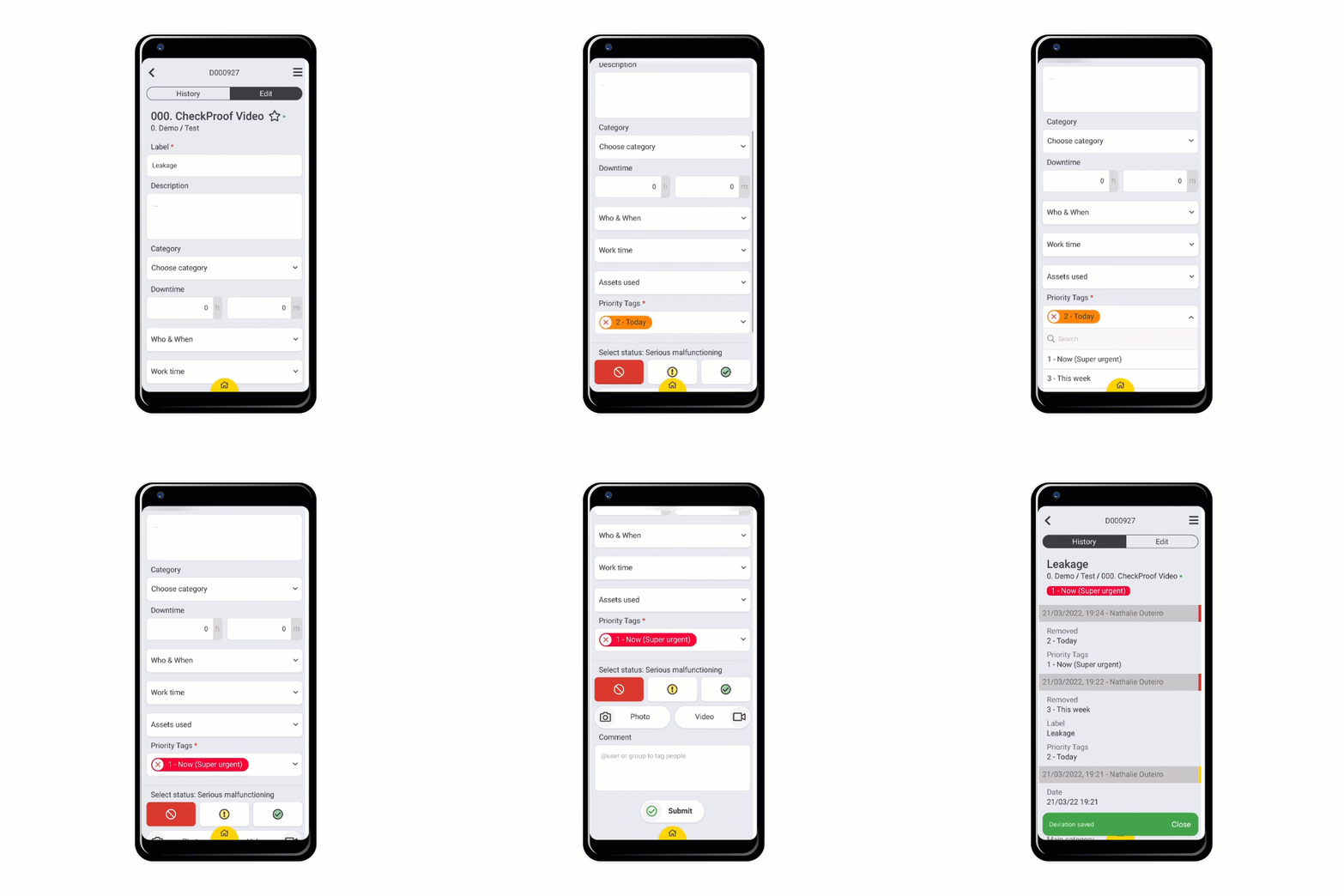
Now you can update any of the fields related to this deviation. In this example, you can see how to update the “Priority Tag”.
When you are done, click “Submit”.
Great! Now you know how to update a deviation using the “Deviations” button.
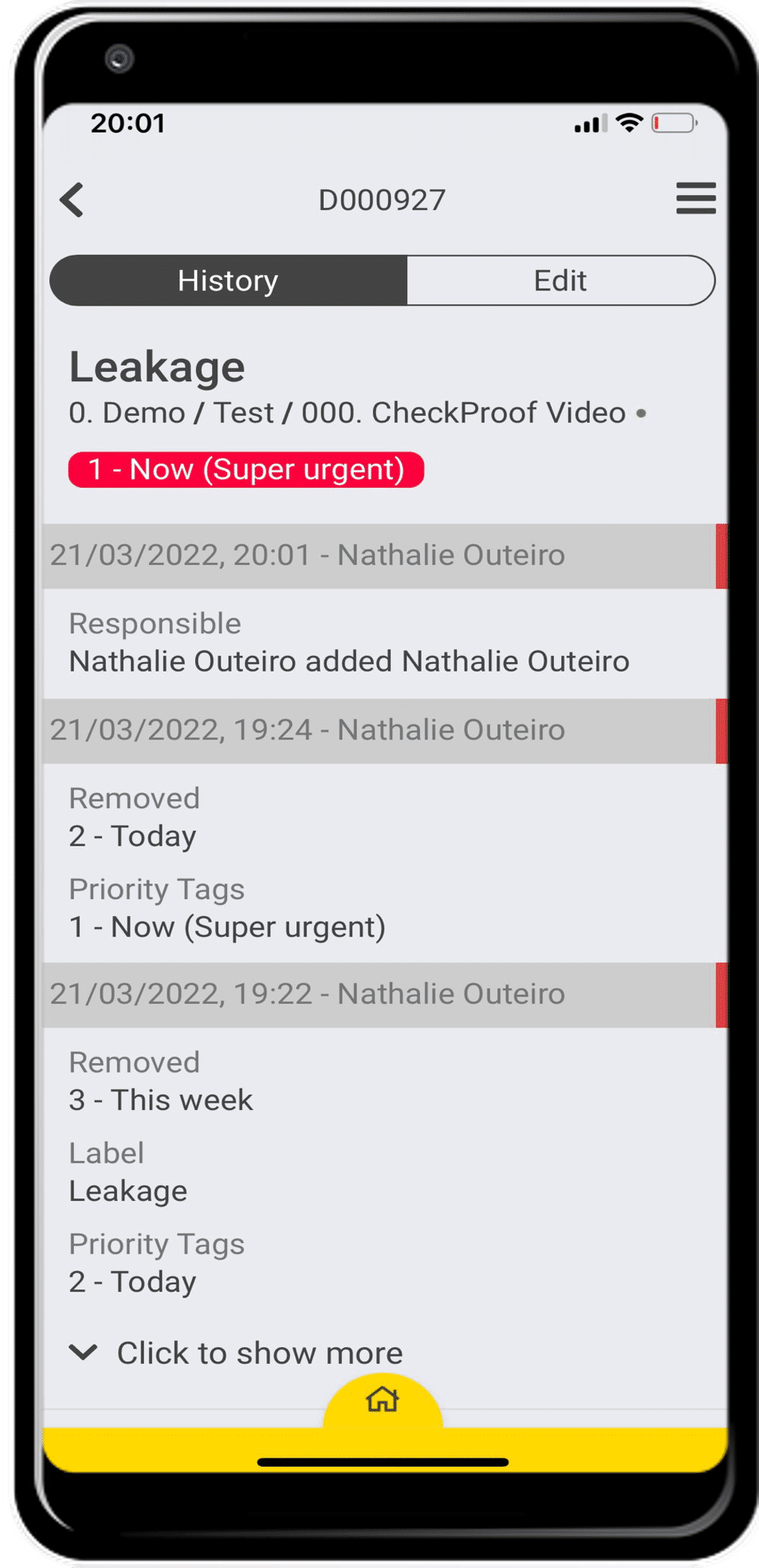
2
Updating a Deviation from the “My Tasks” Section
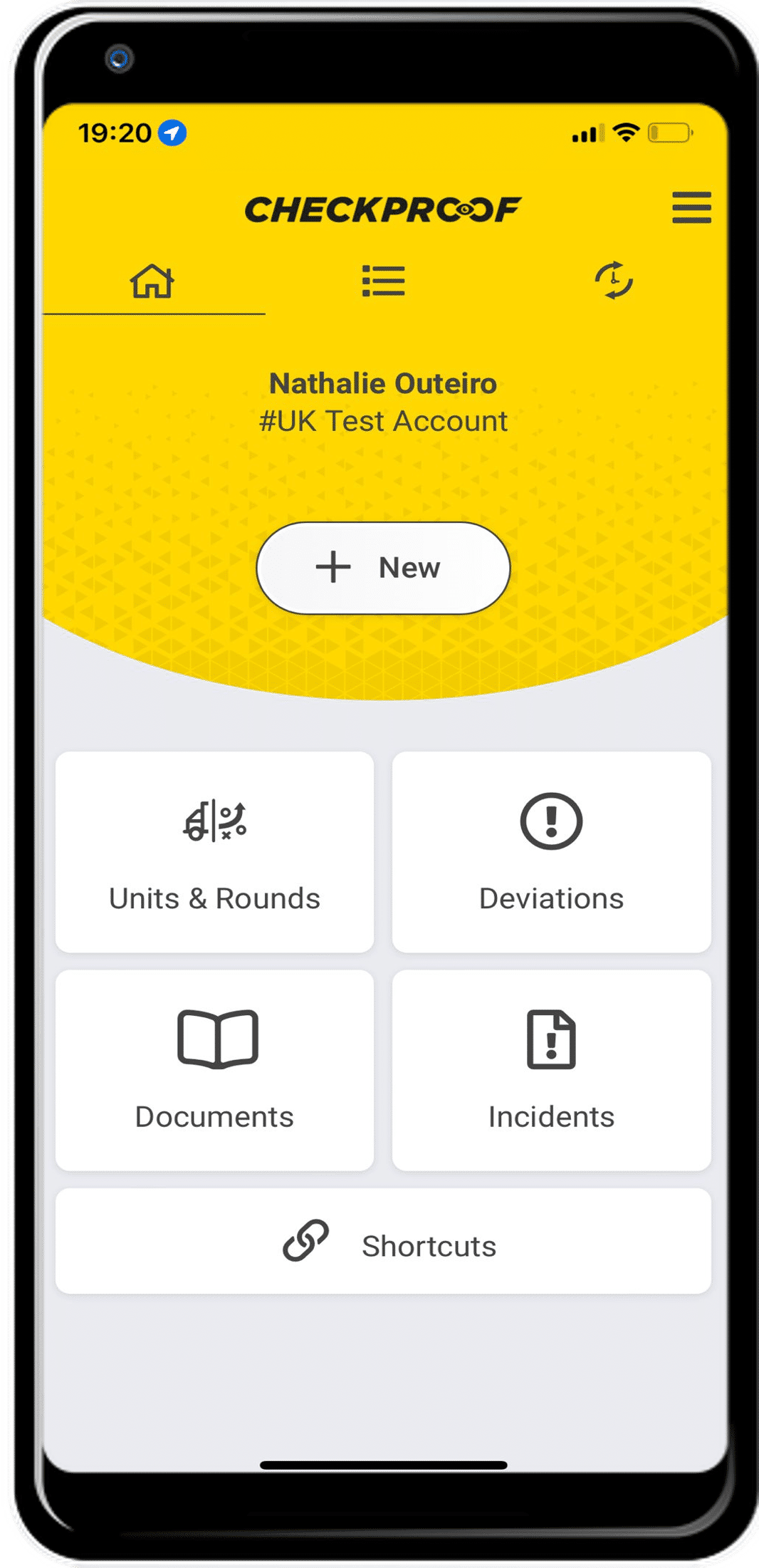
Enter “My Tasks” from the homepage.
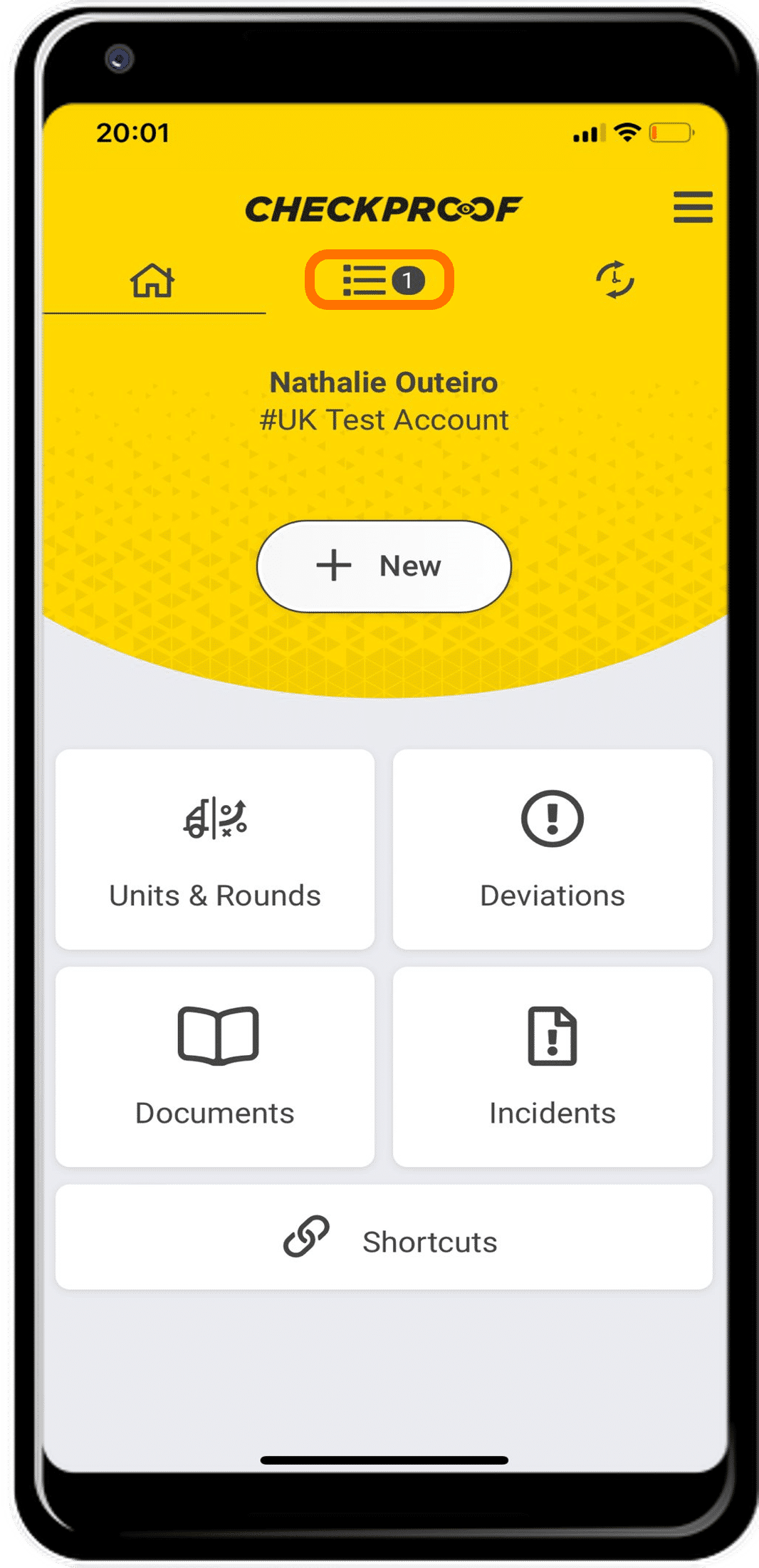
From the homepage, click the list icon to access “My Tasks”.
Choose your deviation.
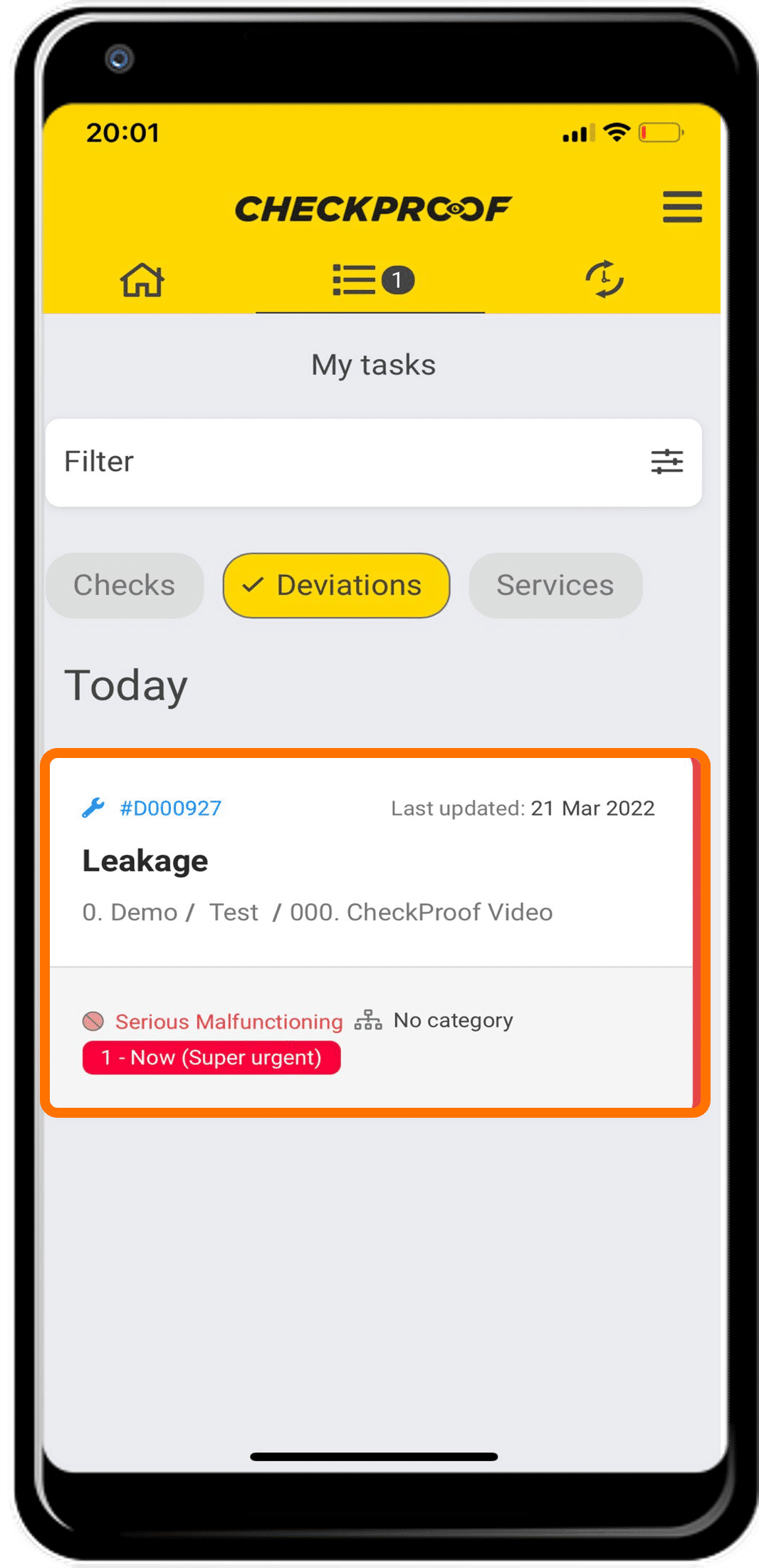
Here you will see any deviations that you have been assigned. Click the deviation that you want to update.
Edit the deviation.
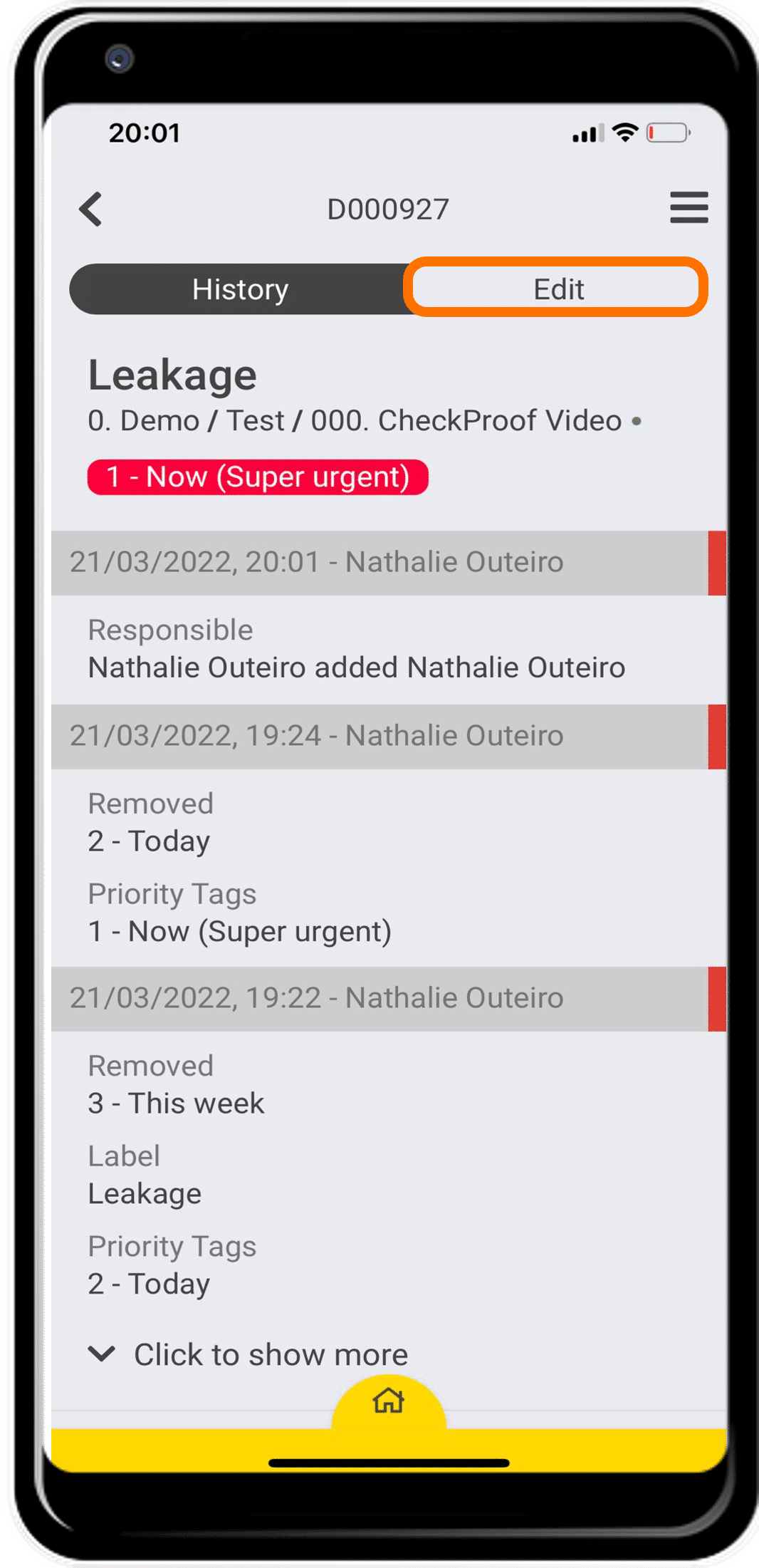
Here you will see all of the information related to your chosen deviation. Click “Edit” at the top of the screen to update this deviation.
Update the information.
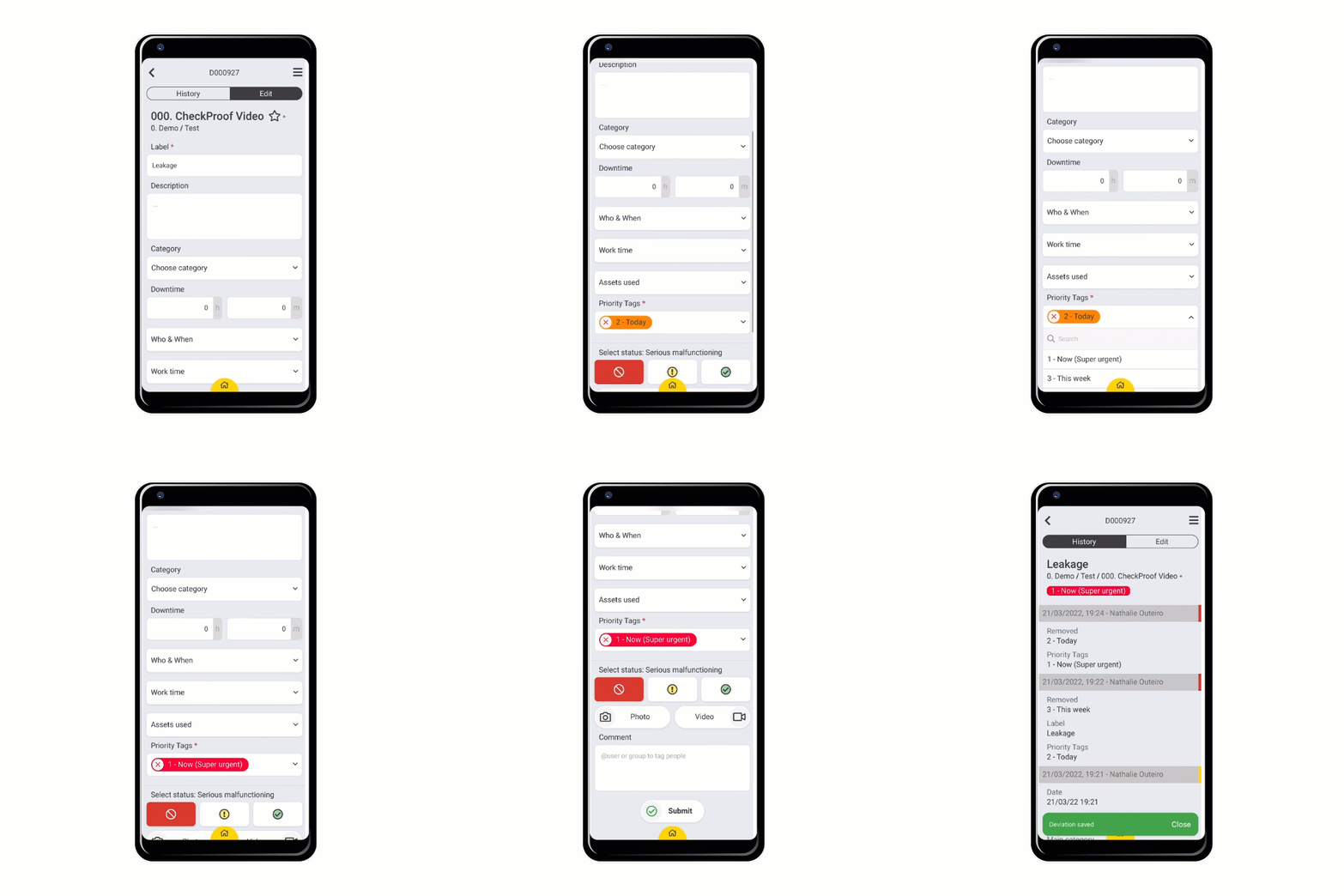
Now choose the field(s) that you want to update. In this example, you can see how to update the “Priority Tag”.
Great! Now you know how to update a deviation from the “My Tasks” section.