Deviation Tags
Deviation tags give you additional filter possibilities to tag different deviations.
Deviation Tags
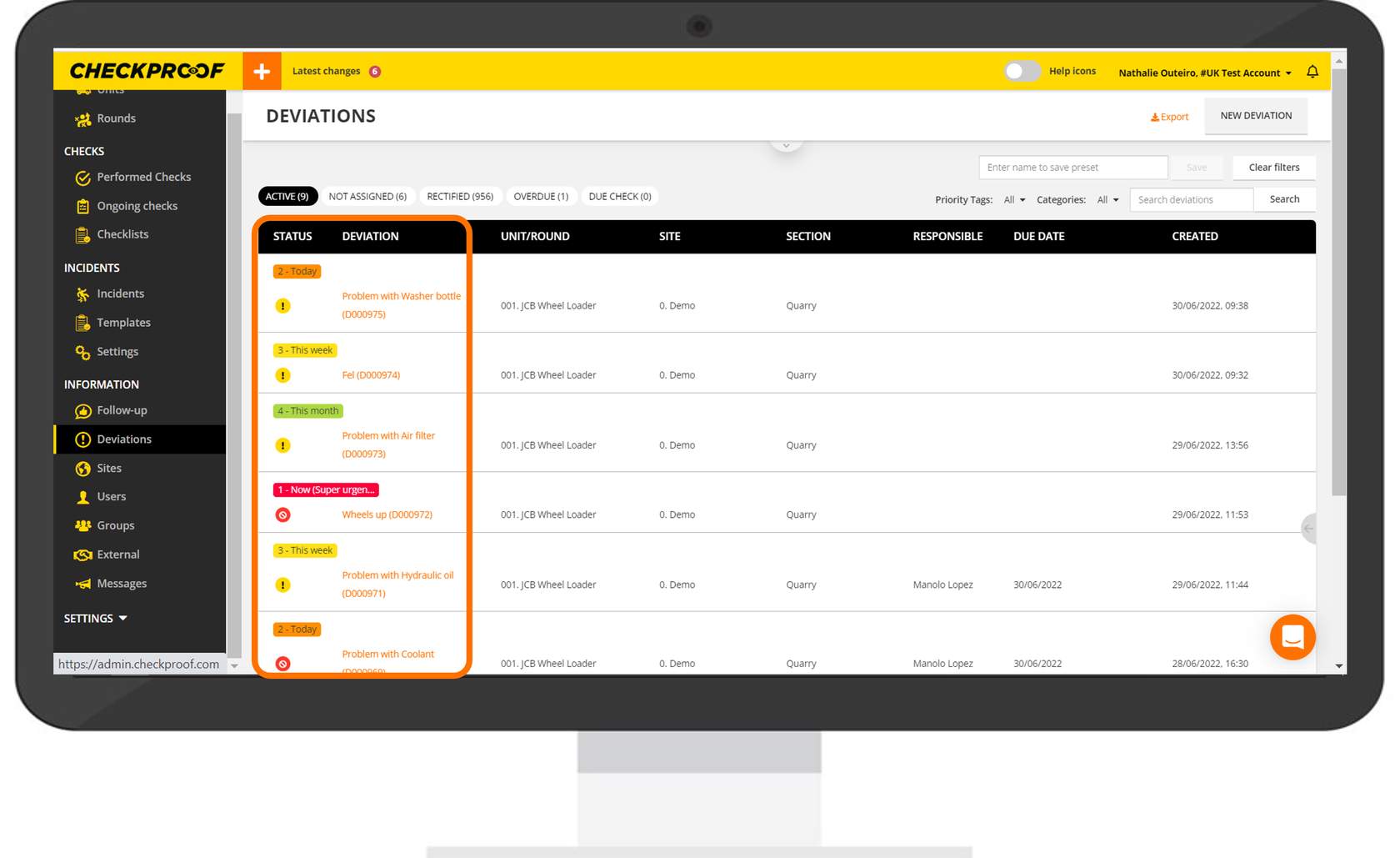
By default, you will see the 3 main deviation statuses, red, yellow, and green. The “Deviation Tag” tab allows you to add additional tags to the deviation.
CREATE A TAG
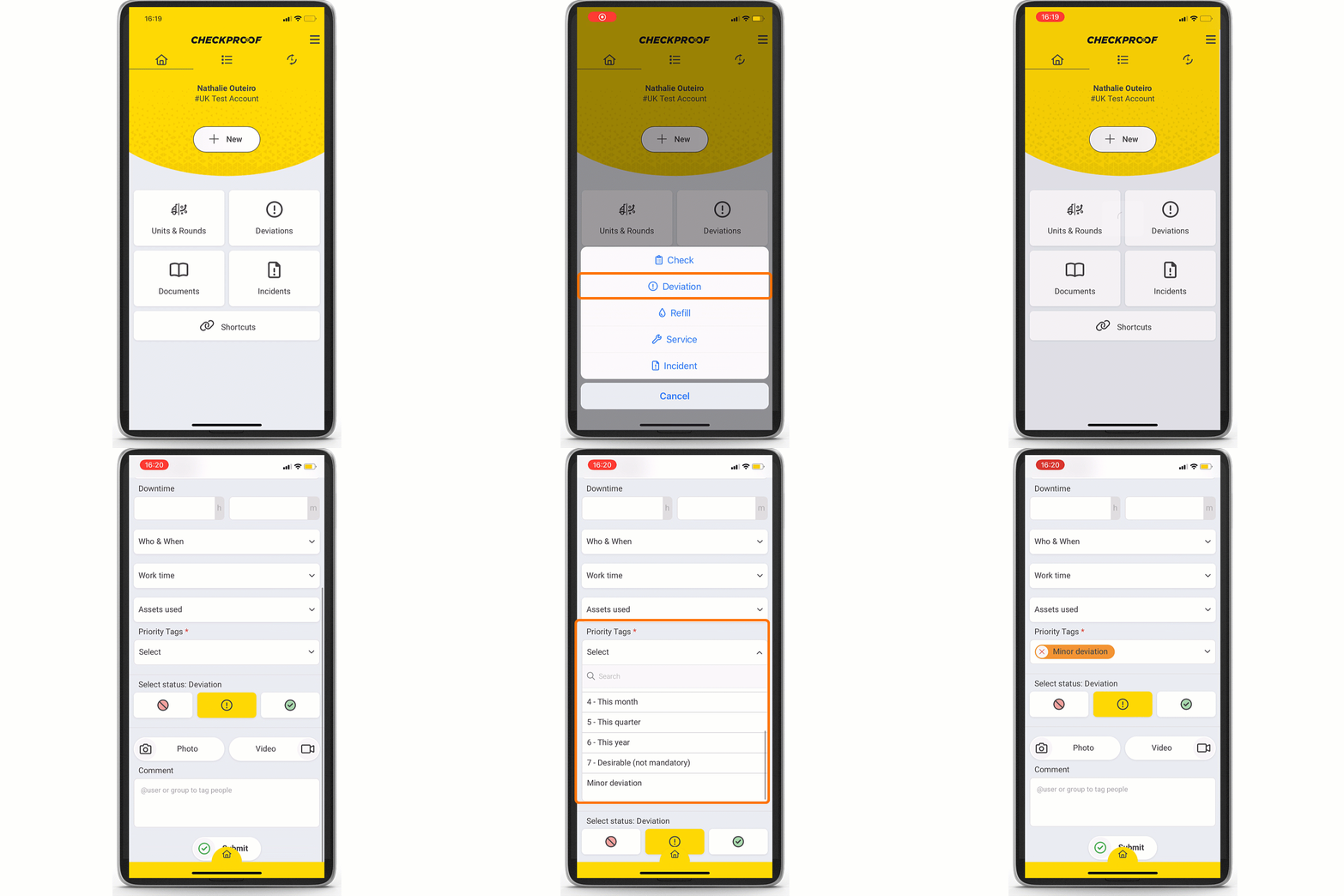
APP VIEW
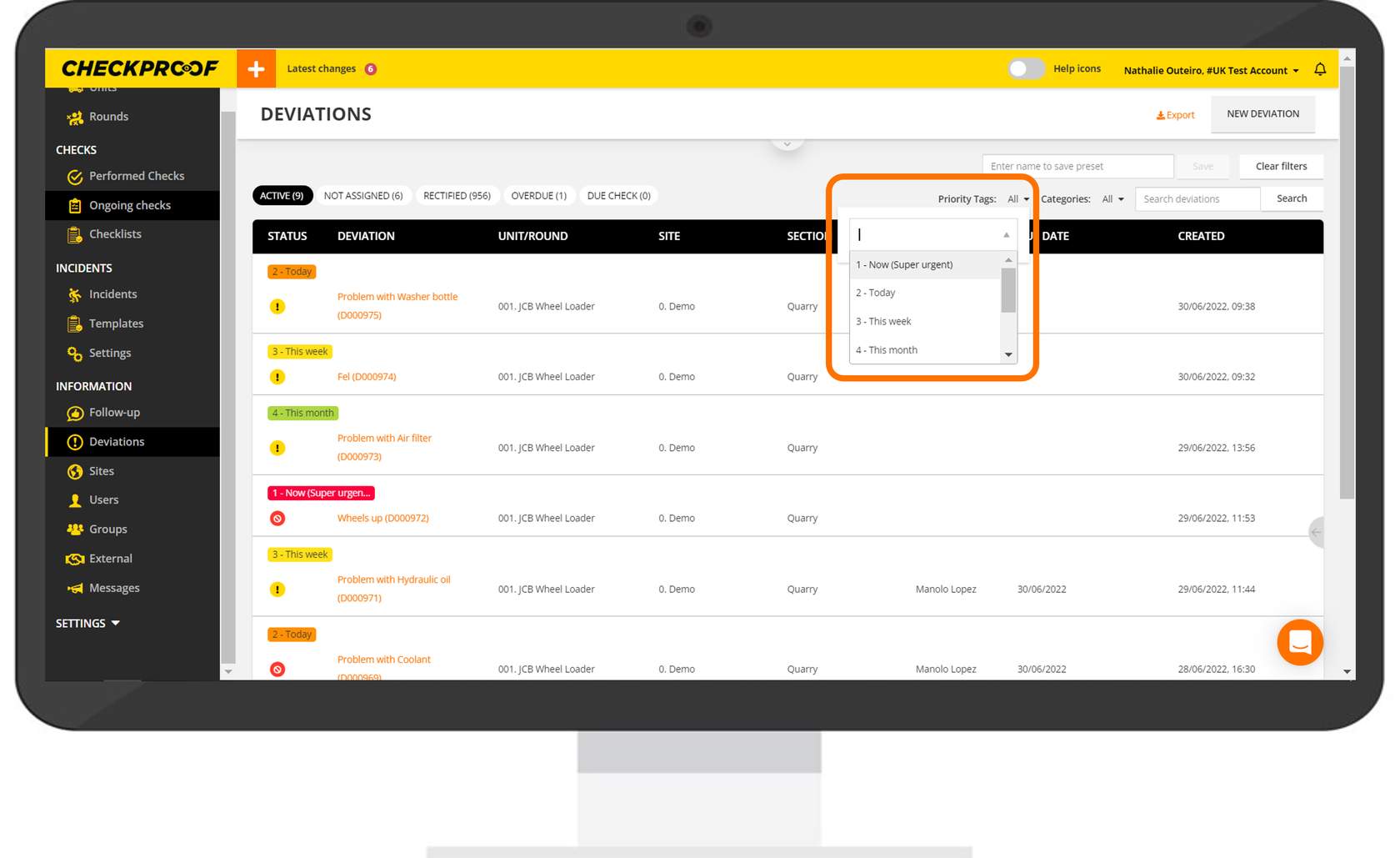
FILTER BY TAG
CHECKLIST
TAGS
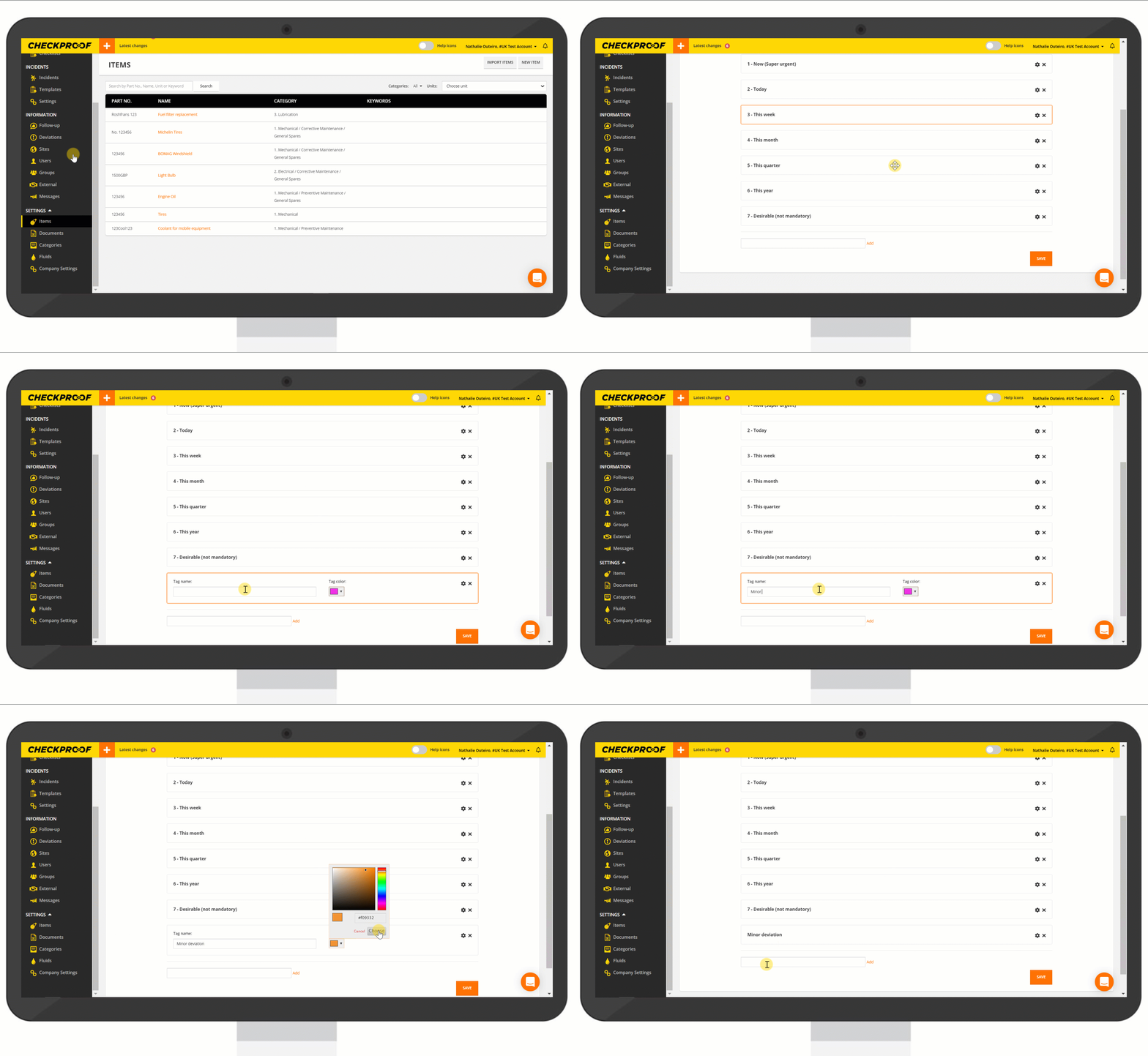
From the “Company Settings” menu follow the steps below:
- Navigate to the “Deviation Tags” tab at the top of the screen. Here you can add as many tags as you require.
- Click on “Add” at the bottom of the page.
- Type in a name for the tag.
- Choose a color to identify the tag.
- Click on “Save”.
You will see all the available priority tags when reporting a deviation.
Click on the “Priority tag” filter to organize the deviations by priority tag.
Checklist taggar
From the “Company Settings” menu follow the steps below:
Navigate to the “Deviation Tags” tab at the top of the screen. Here you can add as many tags as you require.
- Click on “Add” at the bottom of the page.
- Type in a name for the tag.
- Choose a color to identify the tag.
- Click on “Save”.
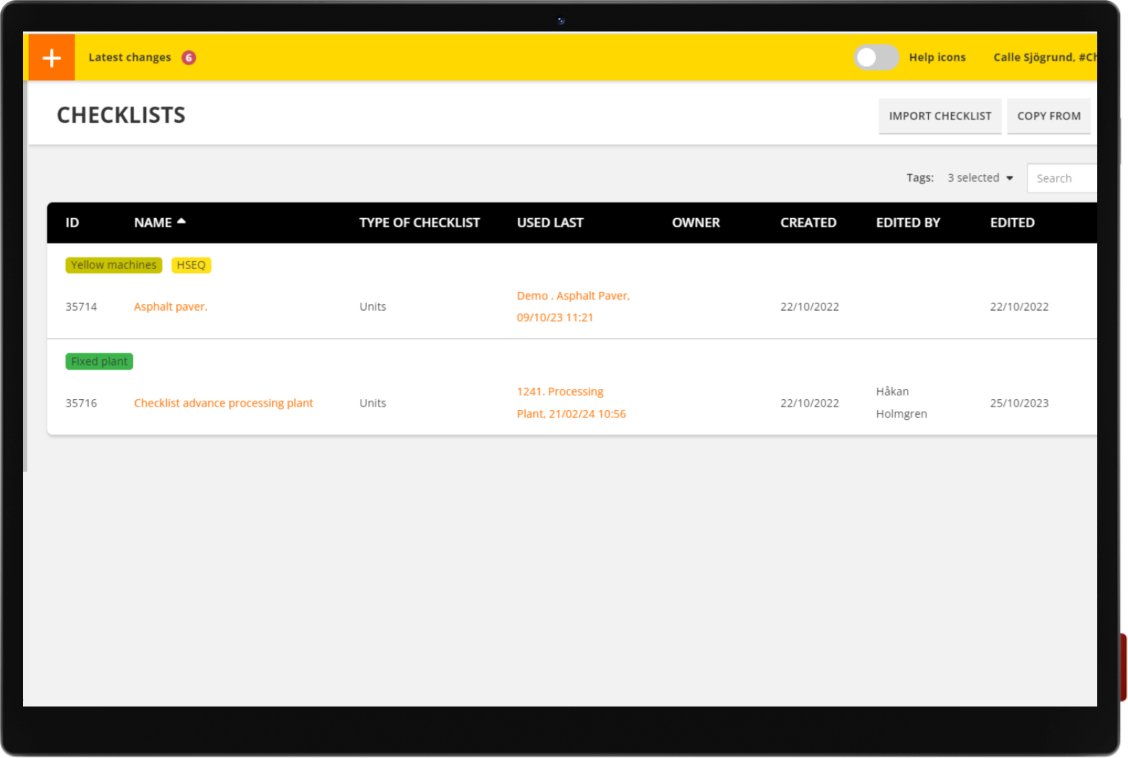
Once you have created your tags, go to the checklist view and click on “Settings” on one of your checklists. Here you will see a new field that allows you to assign a new tag.
Checklist tags are a great way to tag all your checklists. For example, if you have several checklists related to wheel loaders, you can create a tag called “Wheel Loader” and assign that tag to your checklists.